ShipNow
Google 登录
学习如何在 ShipNow 应用中设置 Supabase 的 Google 身份认证。
创建 Google Cloud 项目
前往 Google Cloud Console 创建新项目或选择现有项目
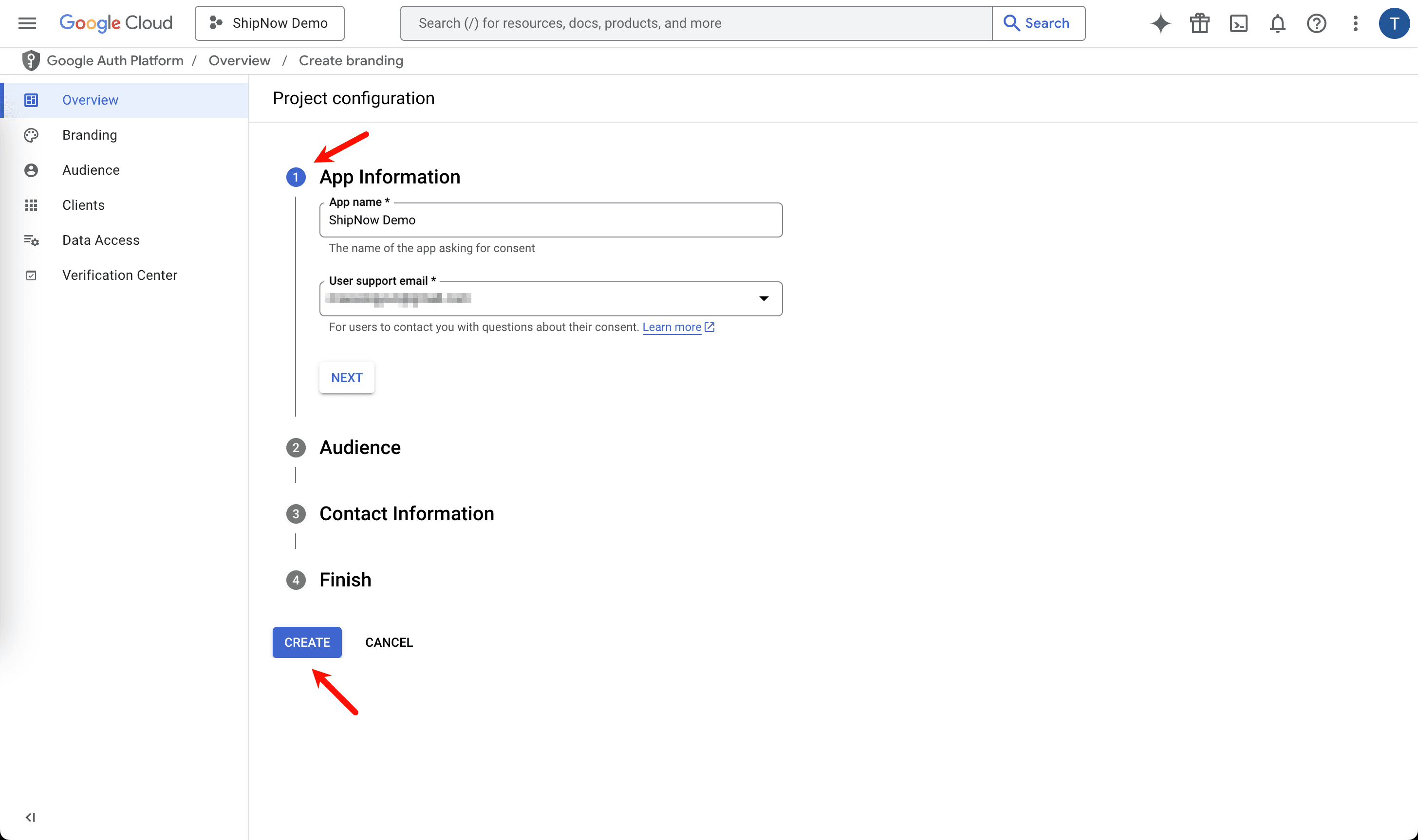
配置 OAuth consent screen
前往 OAuth consent screen 添加应用名称、邮箱等信息
如果您已经配置过 OAuth consent screen,可以通过左侧的 "Branding" 链接修改资料
创建 OAuth 客户端 ID 和密钥
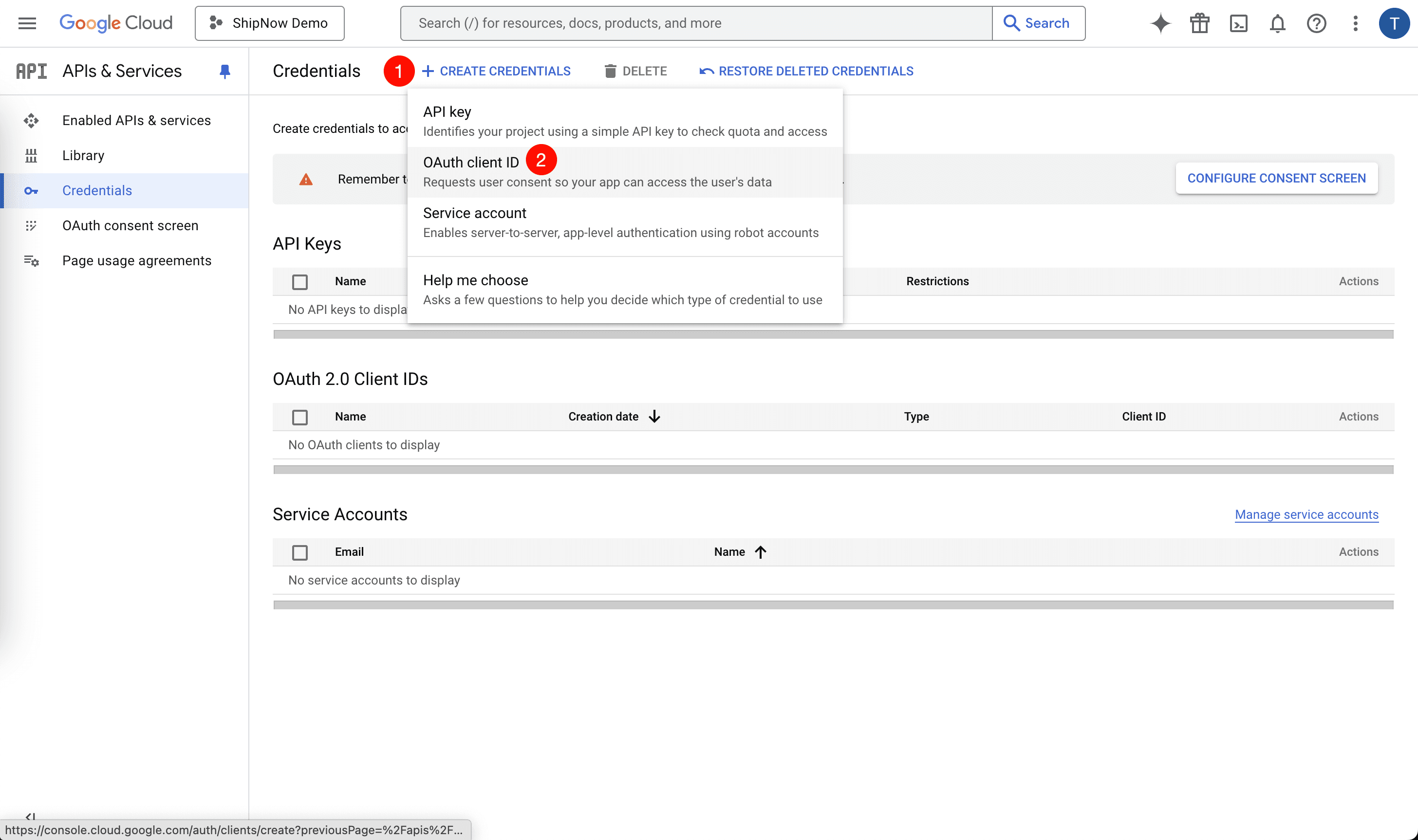
创建 OAuth 客户端 ID 和密钥
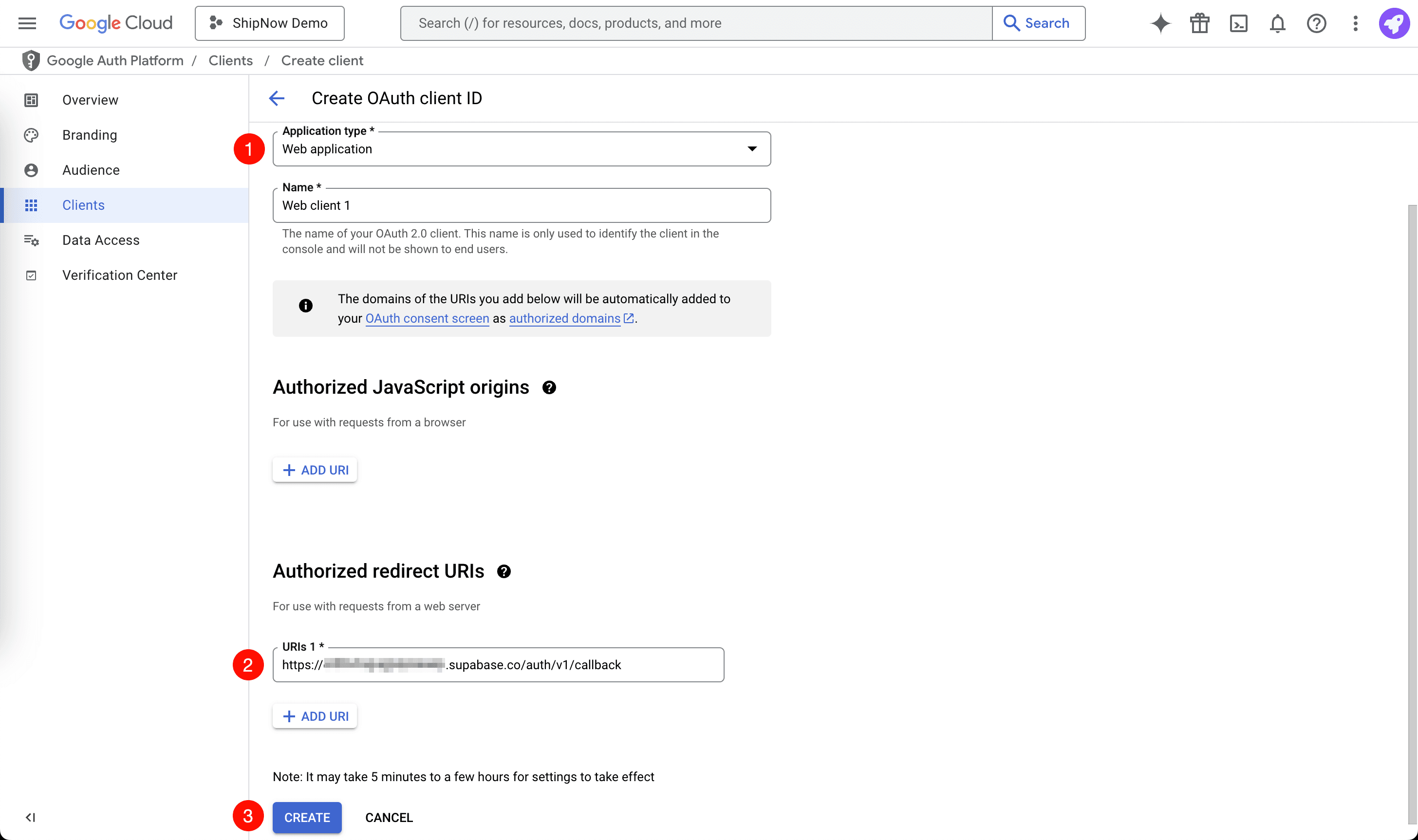
在 "Create OAuth client ID" 页面
-
选择 "Web application"
-
添加授权重定向 URI:
-
如果您使用 Auth.js,添加以下内容:
替换
http://localhost:3000为您的应用的 URL -
如果您使用 Supabase,添加以下内容:
替换
[YOUR_PROJECT_ID]为您的 Supabase 项目 ID
-
-
点击 "CREATE"
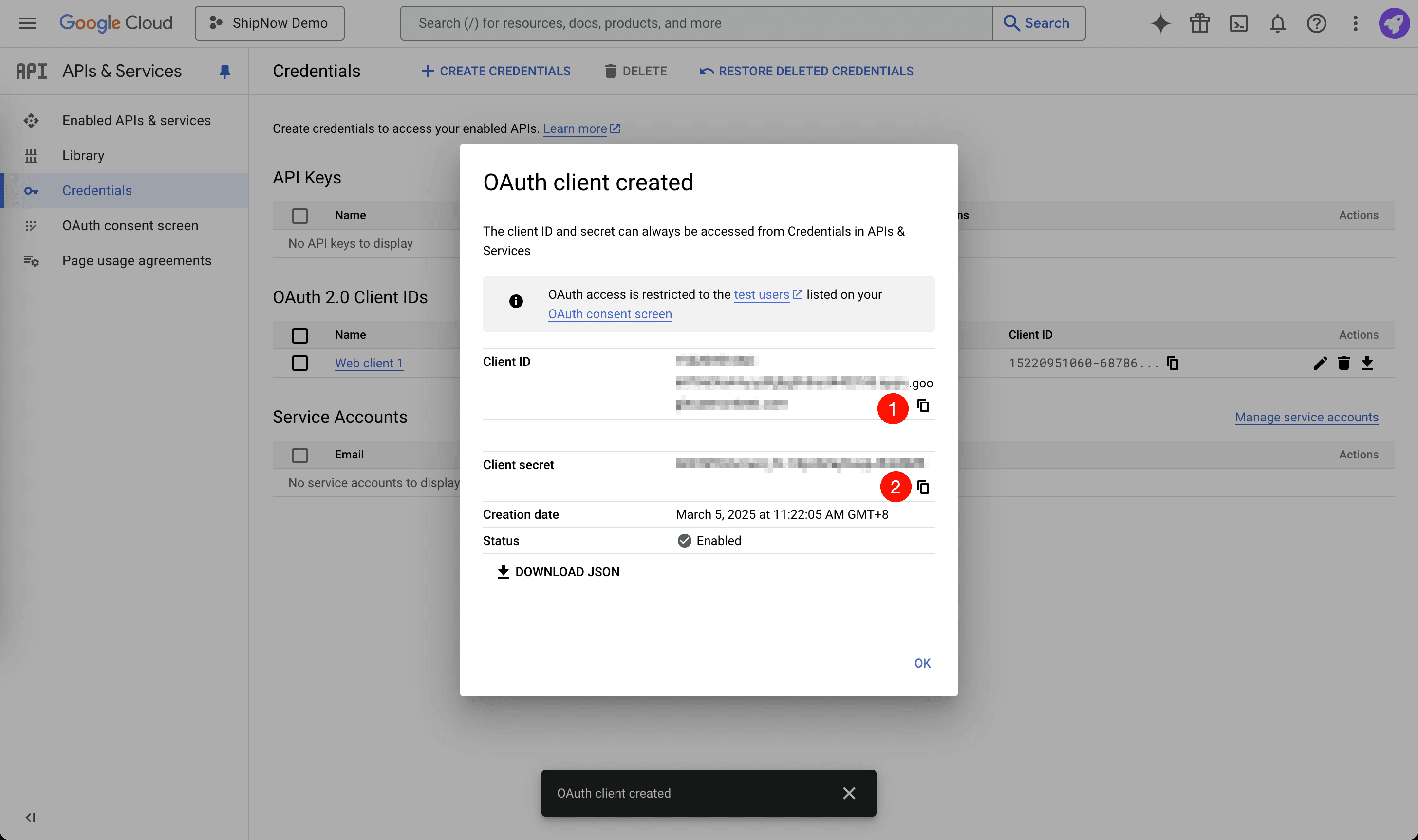
配置 Auth.js Google 登录
如果您使用 Auth.js,在您的 .env.local 文件中添加 "Client ID" 和 "Client Secret"
在 Supabase 中配置 Google 登录
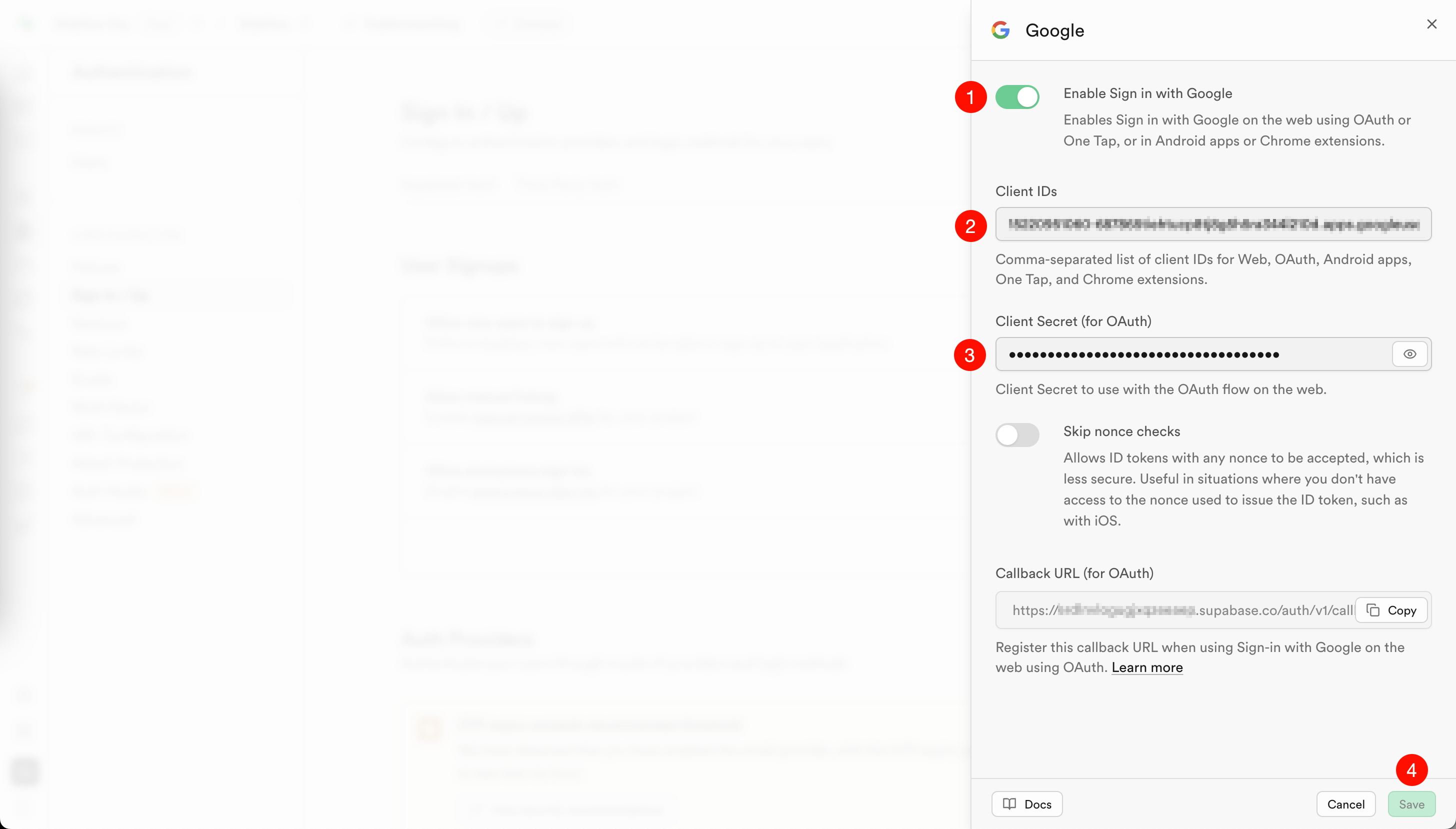
如果您使用 Supabase,前往 Supabase Google 登录配置
- 启用 "Enable Sign in with Google"
- 填写上一步保存的 "Client ID" 和 "Client Secret"
- 点击 "Save"
在 ShipNow 中使用 Google 登录
前往您的应用并点击 "登录" 按钮,然后点击 "使用 Google 登录"
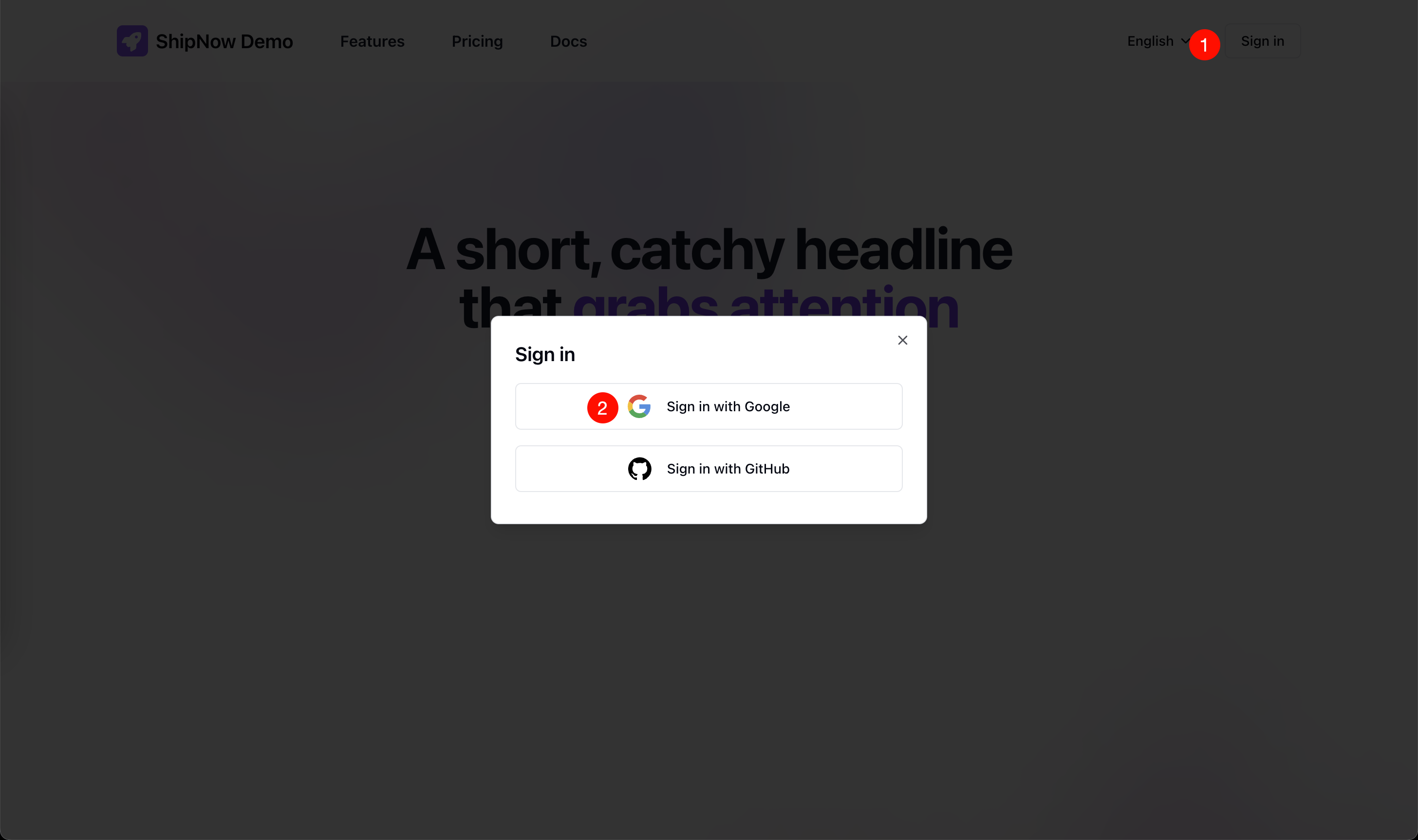
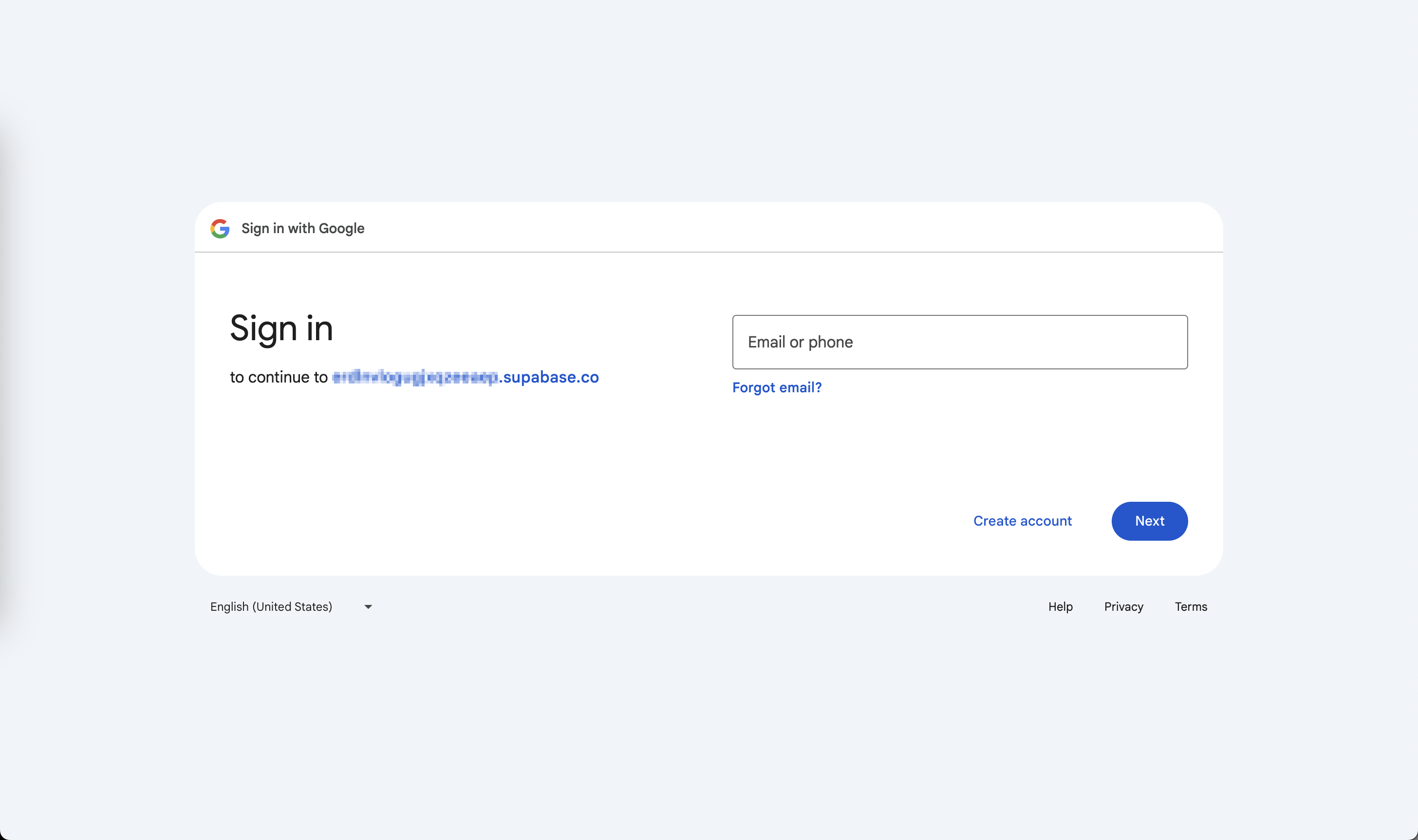
Google 登录页面预览
您将跳转到 Google 登录页面,登录后您将跳转回您的应用