ShipNow
Google Login
Learn how to set up Google authentication with Supabase in your ShipNow application.
Create Google Cloud Project
Go to Google Cloud Console and create a new project or select an existing one
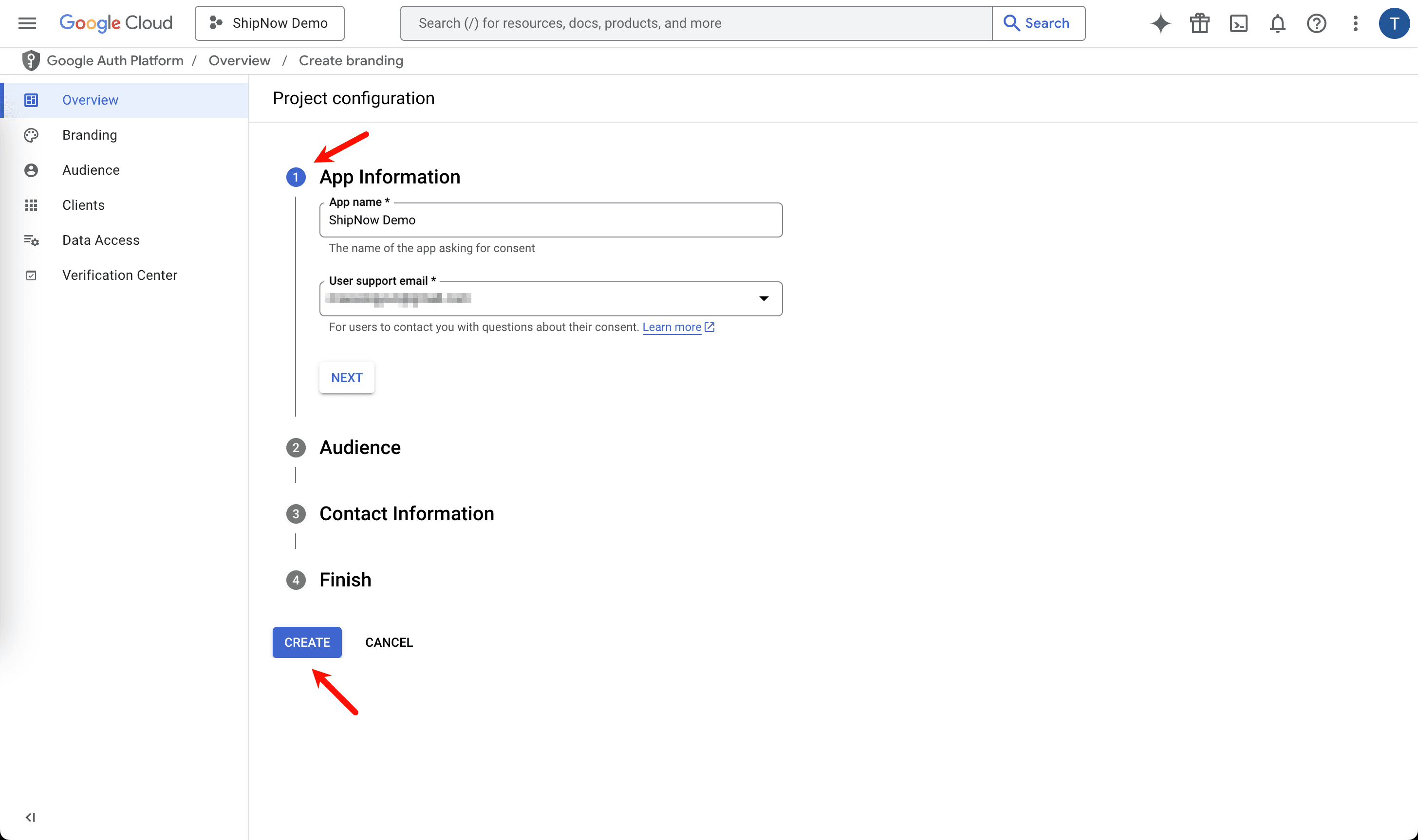
Configure OAuth Consent Screen
Go to OAuth consent screen and add your app name, email, and other information
If you have already configured the OAuth consent screen, you can modify it through the "Branding" link on the left
Create OAuth Client ID and Secret
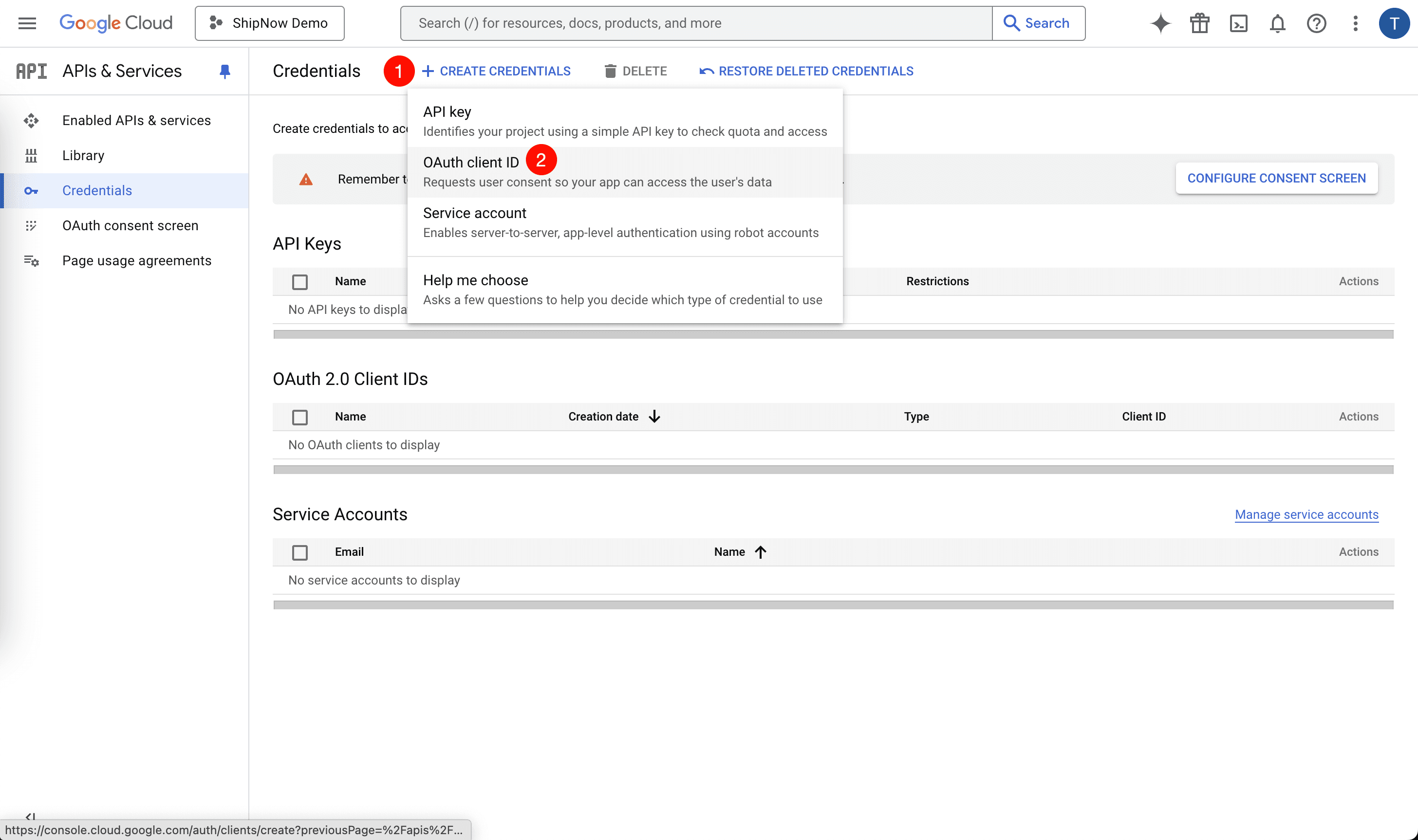
Create OAuth Client ID and Secret
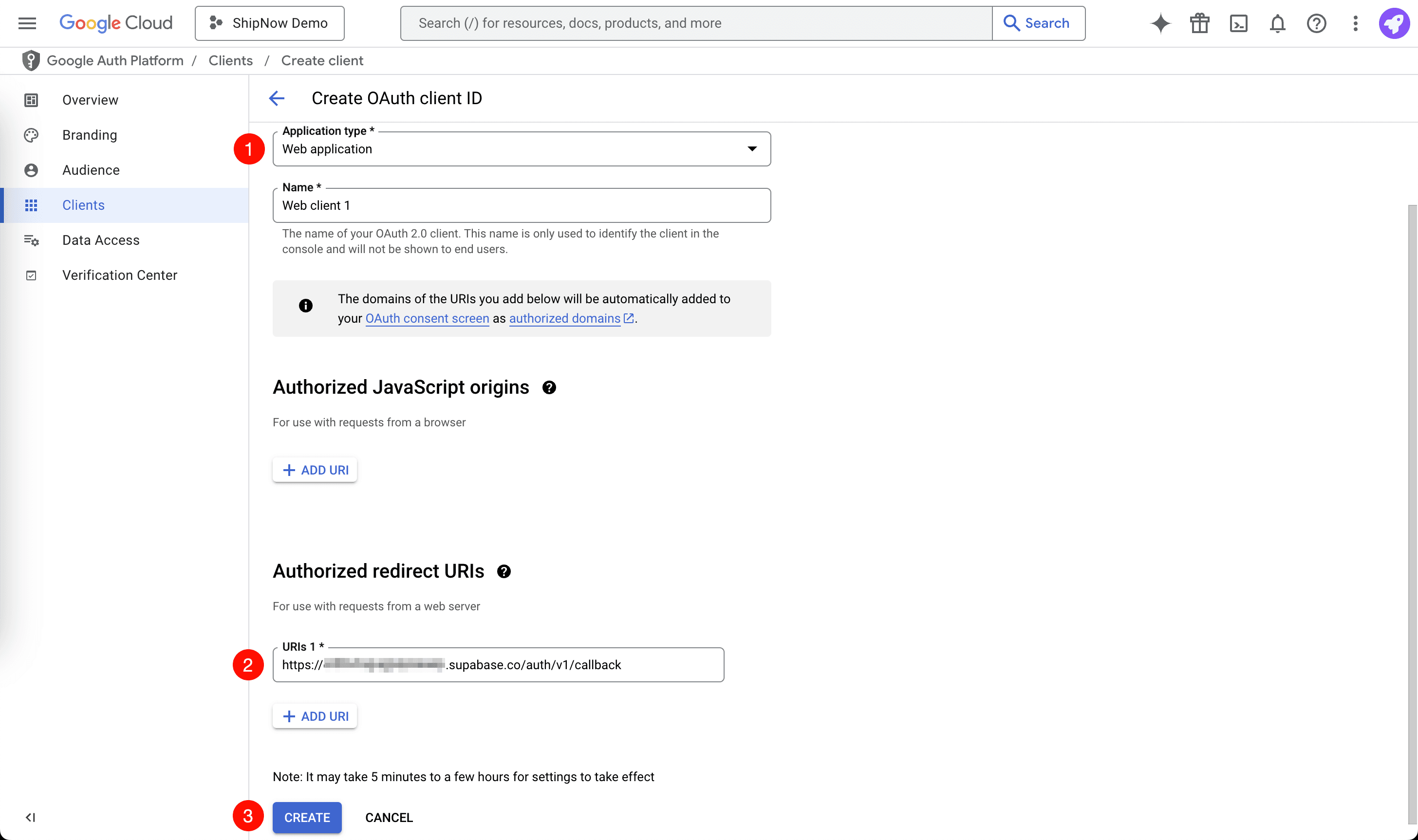
In the "Create OAuth client ID" page
-
Choose "Web application"
-
Add authorized redirect URI:
-
If you are using Auth.js, add the following:
Replace
http://localhost:3000with your app's URL -
If you are using Supabase, add the following:
Replace
[YOUR_PROJECT_ID]with your Supabase project ID
-
-
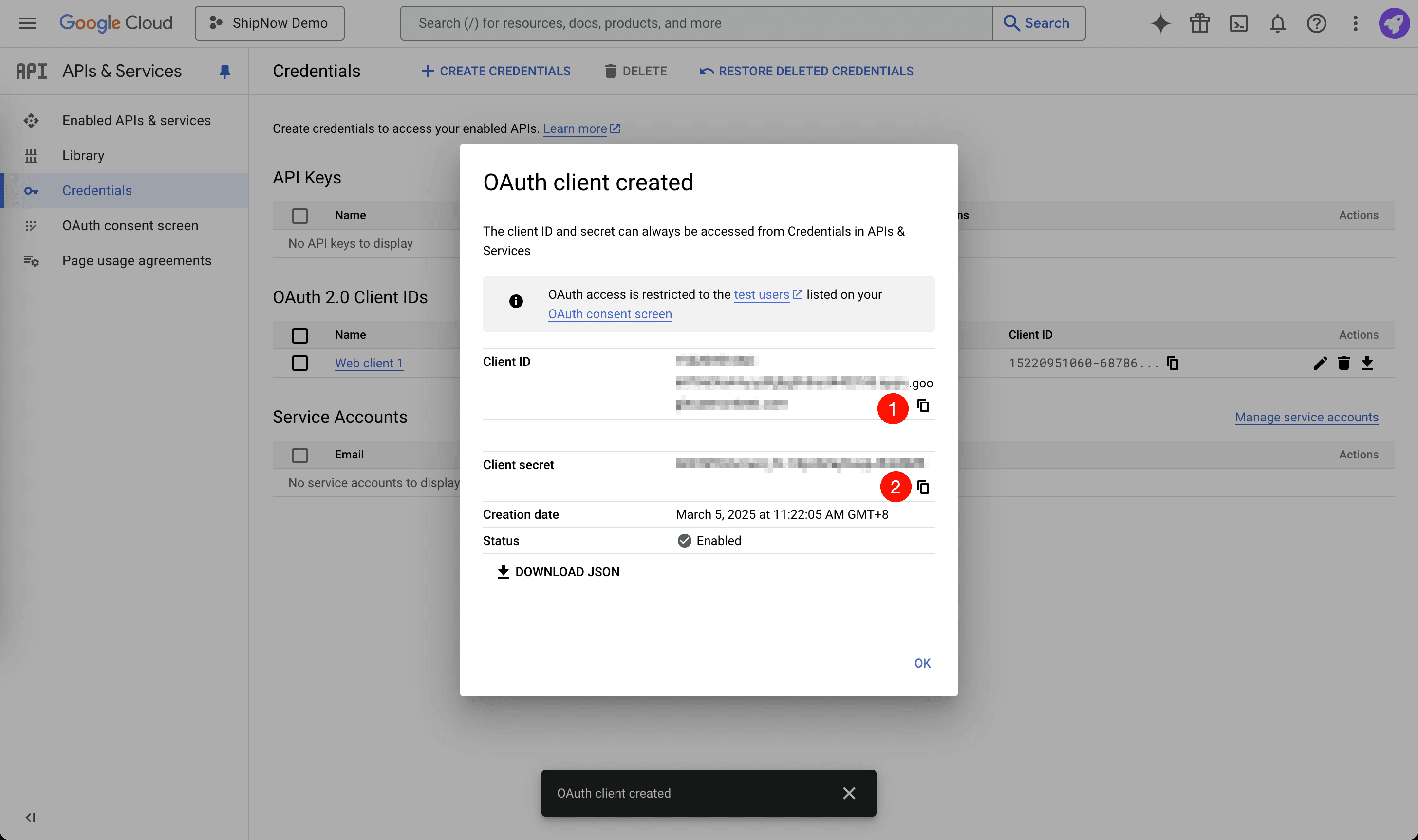
Click "CREATE"
Configure Google Login with Auth.js
If you are using Auth.js, add the "Client ID" and "Client Secret" to your .env.local file
Configure Google Login with Supabase
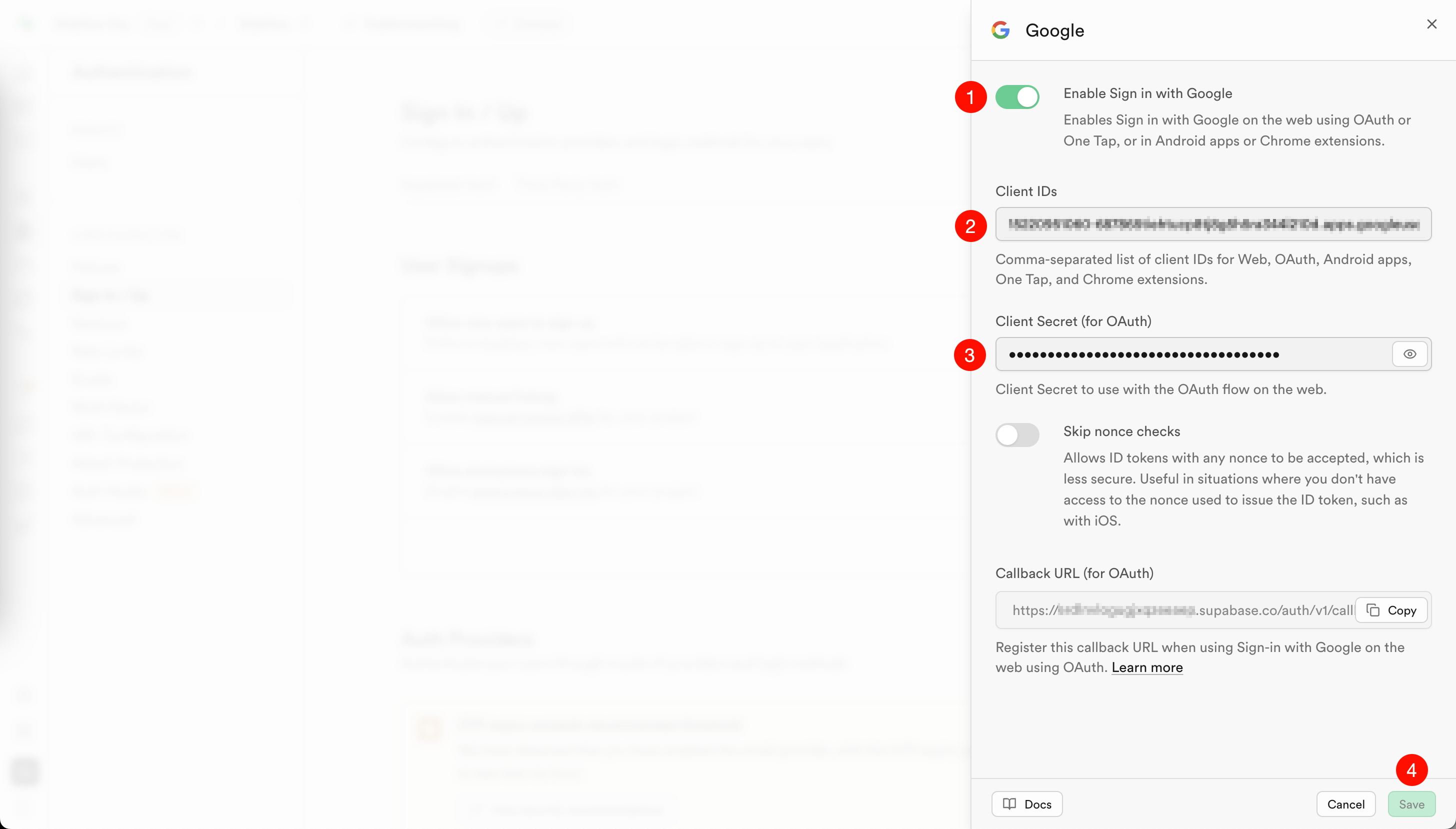
If you are using Supabase, go to Supabase Google Login Configuration
- Check "Enable Sign in with Google"
- Add the "Client ID" and "Client Secret" from the previous step
- Click "Save"
Use Google Login in ShipNow
Go to your app and click the "Sign in" button, then click "Sign in with Google"
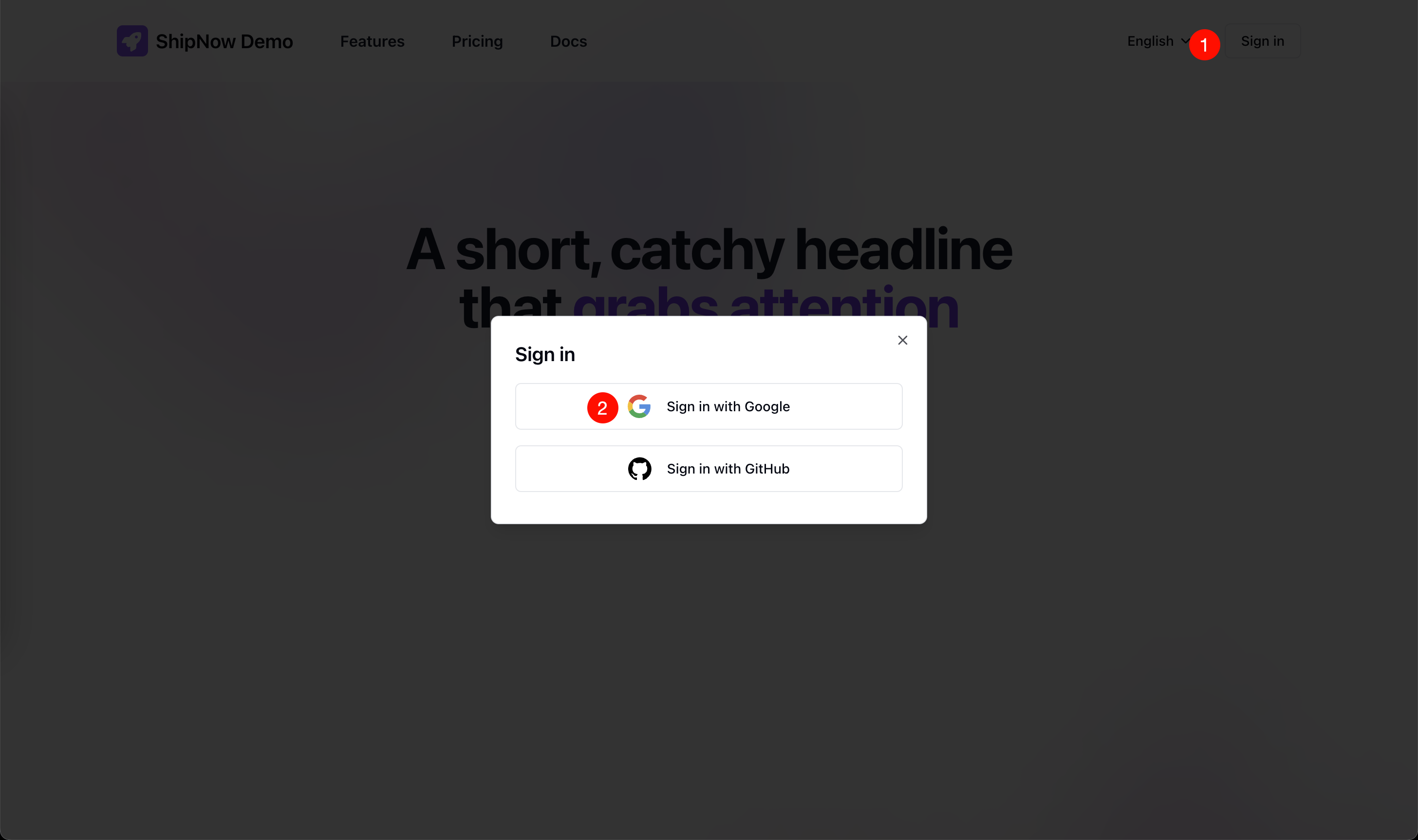
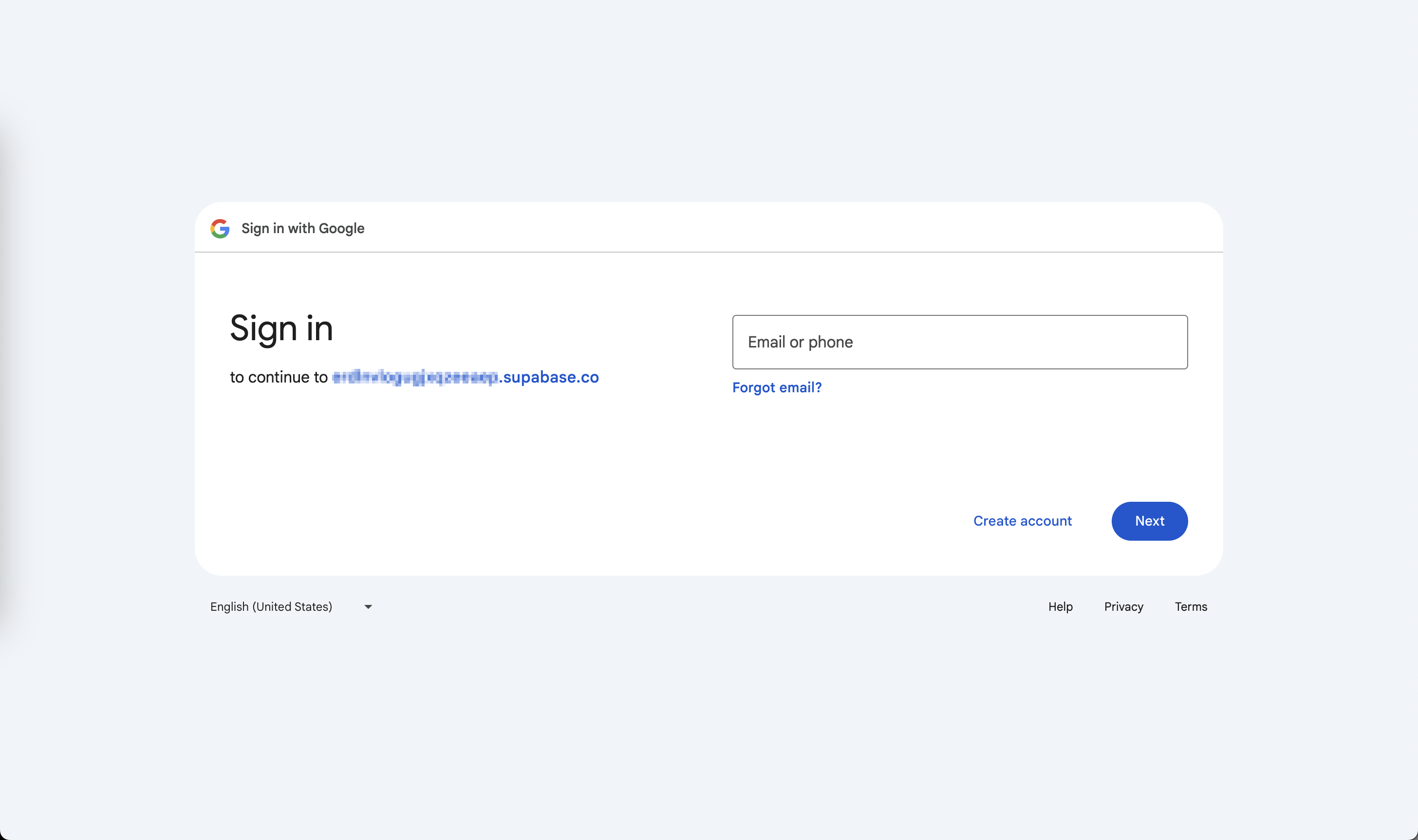
Google Login Page Preview
You will be redirected to Google login page, after signing in you will be redirected back to your app